How Monitor Size Affects Mouse and Keyboard Ergonomics
10 June 2026
Ever finish a gaming session with your wrist feeling like it arm-wrestled a bear? Or maybe you've noticed some shoulder tension after working long hours at your desk? You’re not alone — and surprisingly, your monitor size could be a silent culprit behind these discomforts. Yep, that big beautiful screen you proudly mount on your desk might be doing more than just showing off your kill count or spreadsheet skills.
Let’s dive into how monitor size actually messes with (or helps) your mouse and keyboard ergonomics — and what you can do to level the playing field!
Why Monitor Size Even Matters in Ergonomics
Let’s kick things off with the basics. Why should the size of your monitor influence your entire desk setup?Well, your monitor isn’t just a screen — it's the anchor of your whole workstation. Where that screen sits determines how you position your body: your neck, your back, your arms... even your wrists. Think of it like the sun in your ergonomic solar system. If it’s too far away or too close, too high or too low, everything else becomes wonky.
Now, let’s zoom in on why bigger isn’t always better and how it plays a huge role in how you use your mouse and keyboard.
The Bigger the Monitor, The Bigger the Problem?
Okay, so you’ve got a giant ultra-wide monitor that looks like a spaceship cockpit. Cool. But while it's great for immersive gaming or serious multitasking, it can actually create a few ergonomic issues.1. Extended Arm Reach = Extra Strain
A large monitor naturally takes up more space on your desk. This often forces you to sit further back or stretch your arms farther forward to reach your keyboard and mouse. Over time, this simple shift can cause shoulder and arm fatigue.Think about it: What’s easier — holding a mug close to your chest or extending your arm and holding it straight for five minutes? That’s the kind of micro-strain we’re talking about with oversized screens and poor positioning.
2. Eye Movement vs Head Movement
With smaller monitors, your eyes can do all the work. A quick glance left or right, and boom — you see everything. But with massive monitors, especially ultra-wides or dual-monitor setups, your head starts doing the heavy lifting. A subtle twist here, a nod there — day after day — can lead to neck strain that creeps up on you.And guess what? When your upper body compensates for screen size, your lower body — hands, wrists, arms — follows the motion. That’s how monitor size ends up affecting your keyboard and mouse ergonomics.
Keyboard Ergonomics: The Silent Sufferer
Your keyboard might be getting the short end of the ergonomic stick if your monitor is too large or badly positioned.1. Reaching Forward Unnaturally
If your monitor is too big and not mounted properly, you might naturally place your keyboard farther away to give yourself more visual space. But that often means you're reaching your arms forward all day — a big no-no in the ergonomics world.Your arms should ideally be at a 90-degree angle, with your elbows close to your body. If you find yourself stretching like you're reaching for a slice of pizza across the table, it’s time to rethink your setup.
2. Incorrect Height = Awkward Wrist Angles
Large monitors tend to be placed higher on the desk or even mounted on walls. If you adjust your chair to view the monitor comfortably, your keyboard might end up at a less-than-ideal level. This could bend your wrists awkwardly while typing — which may contribute to repetitive strain injuries like carpal tunnel syndrome.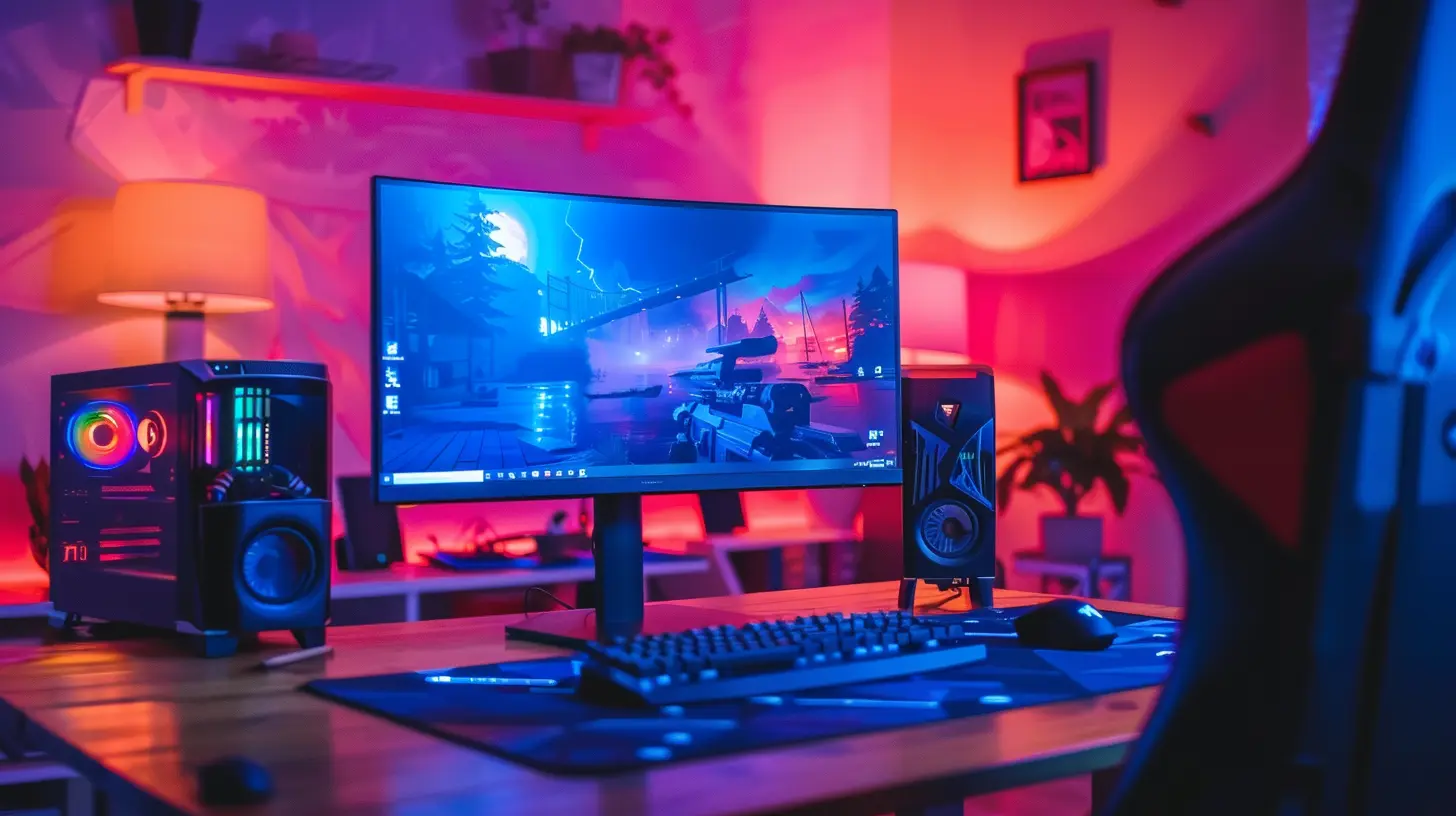
Mouse Ergonomics: It’s a Bigger Deal Than You Think
Gamers, creators, and office warriors alike — you probably use your mouse more than your keyboard. And when your monitor is too large or poorly adjusted, using the mouse becomes a literal pain.1. Mouse Drift and Shoulder Stress
Here's something most people miss: the bigger your screen, the more physical space your cursor needs to cover. That often translates to larger, more exaggerated mouse movements, especially across ultra-wide or 4K monitors. These wide movements aren't just about your wrist anymore — your shoulder and upper arm get recruited into the action.That subtle uptick in effort, repeated for hours, can mean muscle fatigue, shoulder tension, and in some cases, chronic pain. It's like slowly adding weights to your arms without even noticing.
2. Wrist Angle Gets Compromised
Just like with keyboards, if your desk layout shifts due to monitor placement, your mouse hand gets affected. A poorly placed monitor can pull your mouse further away, causing your wrist to angle unnaturally. Over time, this can lead to conditions like tendinitis or De Quervain’s tenosynovitis — basically the gamer’s version of a pulled hammy.Ideal Monitor Sizes for Healthy Ergonomics
So, what’s the sweet spot?There’s no one-size-fits-all answer, but here are some general guidelines based on body mechanics and ergonomics science:
| Monitor Size | Ideal Use Case | Recommended Distance |
|--------------|----------------|----------------------|
| 24" - 27" | Everyday productivity, esports gaming | 20 to 30 inches away |
| 28" - 32" | Content creation, immersive gaming | 25 to 35 inches away |
| 34" and up (Ultra-wide) | Multitasking, professional setups | 30 to 40+ inches away |
Remember, the bigger the screen, the further back you’ll need to sit, which then affects everything else — including how you position your keyboard and mouse.
Tips to Fix Your Setup — Without Downsizing
If you already own a massive monitor, don’t stress. You don’t need to chuck it out the window. Here are some quick fixes to make your workstation friendlier to your hands and arms:✅ 1. Use a Monitor Arm
A movable arm allows you to fine-tune the monitor’s position — height, depth, and angle — so it aligns better with your natural line of sight. This helps you keep your keyboard and mouse close, preventing overreaching.✅ 2. Invest in an Ergonomic Desk and Chair
A proper desk can give your keyboard and mouse the space they need without sacrificing comfort. Combine it with a chair that supports your posture, and you’ve got an ergonomic dream team.✅ 3. Try a Split Keyboard or Wrist Rest
Split keyboards allow for a more natural arm angle, especially useful if your monitor forces a wider stance. A wrist rest keeps your arms in a neutral position, reducing strain.✅ 4. Lower Your DPI Settings
If your mouse cursor has to travel across a massive screen, lower your DPI (dots per inch) so the movement feels more natural and controlled. This can help reduce exaggerated arm motions over time.✅ 5. Mind Your Posture
This seems basic, but you’d be surprised how often we let it slide. Sit back in your chair, keep your feet flat, and align your monitor so that the top third of the screen is at or just below eye level.The Gaming Angle: Competitive Edge or Silent Killer?
Gamers are especially prone to ignoring ergonomics for the sake of immersion. That 49-inch curved ultra-wide monitor? It might give you peripheral vision that rivals a hawk, but not if you’re hunched forward with your keyboard tilted at an odd angle and your mouse hand flying across the desk like it’s breakdancing.If you’re in it for the long haul — tournaments, streaming, or just grinding everyday — ergonomic awareness isn’t optional. It’s the difference between consistent performance and burning out early.
So, What’s the Verdict?
Monitor size absolutely plays a huge role in how comfortably — or uncomfortably — you use your mouse and keyboard. Bigger monitors can be awesome, but they demand more mindful ergonomics. It’s all about finding balance. You can have the immersive visual experience without turning your desk setup into a pain factory.At the end of the day, your gear should fit you — not the other way around.
So if your arms feel like they’ve been swinging battle axes after a few hours at your desk, maybe it’s time to adjust that beautiful behemoth of a monitor.
TL;DR – Quick Takeaways
- Large monitors increase the physical space your eyes and arms have to cover.- Poor placement often leads to strained arms, wrists, shoulders, and necks.
- Keep your keyboard and mouse close to avoid overreaching.
- Use ergonomic tools like monitor arms, wrist rests, and properly adjusted chairs.
- Bigger isn’t bad — but only if you set it up right!
all images in this post were generated using AI tools
Category:
Gaming MonitorsAuthor:

Avril McDowney
Discussion
rate this article
1 comments
Cynthia Hamilton
Choosing the right monitor size can significantly enhance comfort and improve gaming performance.
June 13, 2026 at 4:27 PM