Mobile Game Performance Optimization in Unity
15 March 2026
Have you ever played a mobile game that's so laggy it makes you want to throw your phone across the room? Yeah, we’ve all been there. Mobile gaming is supposed to be fun and immersive, not an endurance test for your patience. If you're a game developer using Unity, ensuring your game runs like butter on mobile devices should be your top priority. The good news? There are plenty of tricks and techniques to optimize your game's performance. Let’s dive headfirst into the nitty-gritty of mobile game performance optimization in Unity.

Why Does Performance Optimization Matter?
Mobile devices have come a long way, but they still don’t pack the same punch as PCs or consoles. Limited hardware resources like lower processing power, smaller memory, and weaker GPUs can quickly turn a gorgeous game into a slideshow if not properly optimized. Plus, mobile gamers are an unforgiving bunch. If your game stutters or drains their battery faster than they can say "Game Over," they’ll likely uninstall it faster than a toddler can tap on a screen.Optimization isn’t just about making the game run smoothly; it’s about balancing visual quality, responsiveness, and battery consumption. And guess what? Unity provides some powerful tools and techniques to help you strike that balance. So buckle up, because we’re about to unlock some game-dev superpowers.
1. Understand Your Target Hardware
Let’s start with the basics. You can’t optimize your game if you don’t know what you’re optimizing for. Are you targeting the latest flagship devices, or are you planning to support lower-end phones too? The hardware capability of a top-tier iPhone is light-years ahead of a budget Android device.Unity makes it easy to tailor your game for different devices using its Player Settings. You can tweak the graphics quality, resolution, and other settings so that your game performs well on a variety of devices. Pro tip: Use Unity’s Device Simulator to test how your game behaves on different screen sizes and resolutions without needing 100 physical devices.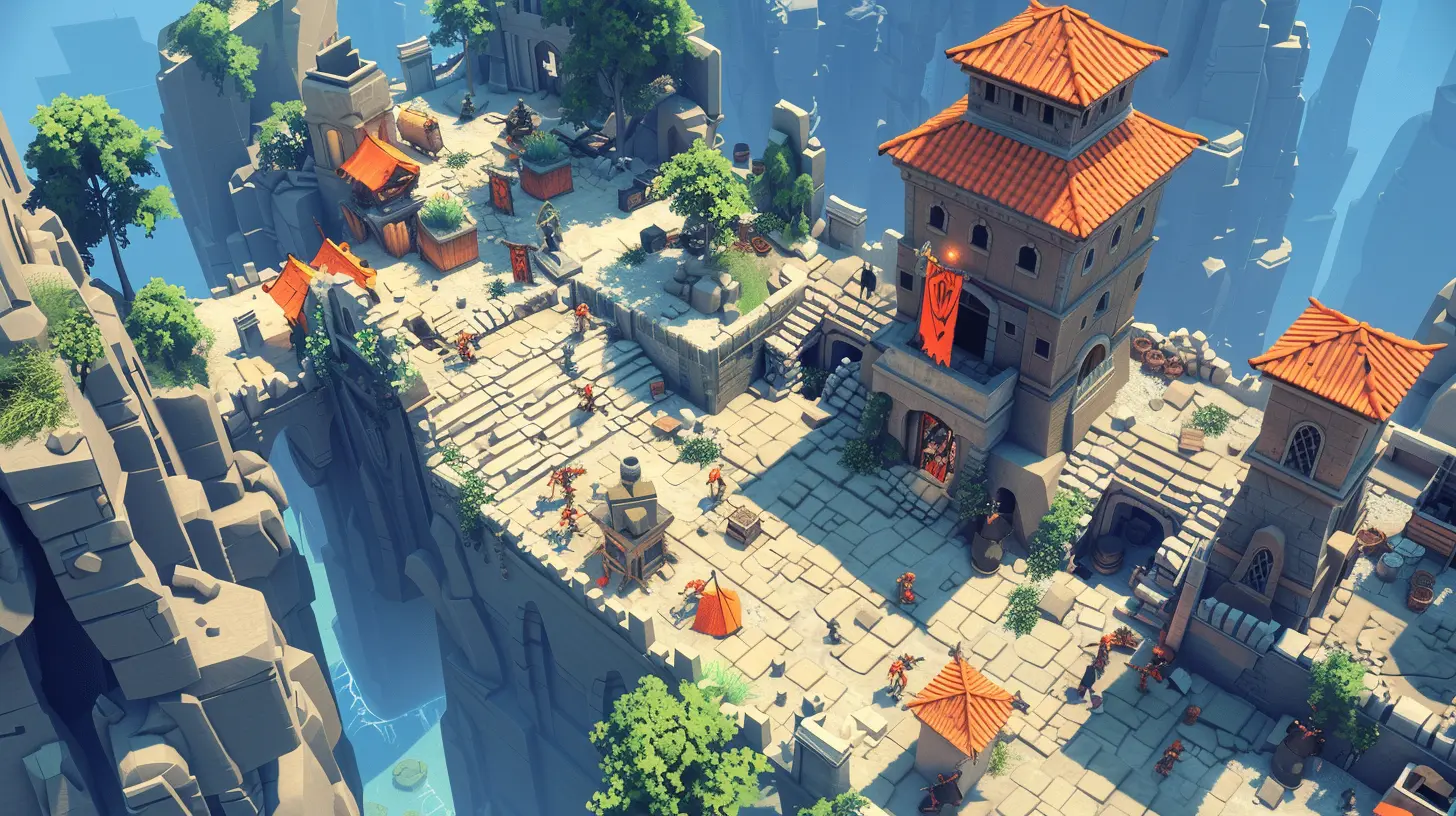
2. Reduce Draw Calls
Draw calls are the silent performance killers in Unity. In simple terms, a draw call is a command that tells the GPU what to render on the screen. The more objects you have in your scene, the more draw calls Unity has to make, which can slow your game to a crawl.To reduce draw calls:
- Combine Meshes: Unity has a handy tool called Static Batching which merges static objects into one big piece. Think of it as combining Lego pieces into a single structure.
- Use Texture Atlases: Instead of loading multiple small textures, pack them into a single large texture. It’s like replacing a bunch of sticky notes on your desk with one big planner.
- Optimize Transparency: Transparent objects (like glass or smoke) can trigger extra draw calls. Use opaque materials whenever possible.
3. Optimize Physics Calculations
Unity's physics engine is fantastic, but if overused, it can hog all your processing power. This is especially problematic on mobile devices, where performance headroom is limited.Here’s how to keep physics in check:
- Disable Unused Colliders: Got objects in your game that don't need collision detection? Turn their colliders off.
- Use Simplified Colliders: Replace complex mesh colliders with simple box or sphere colliders. They get the job done and are easier for Unity to process.
- Adjust Fixed Timestep: The Fixed Timestep setting in Unity controls how often physics updates are calculated. Lowering this value can improve performance, but be careful not to break your game mechanics.
4. Optimize Scripts and Code
Sloppy code is like a leaky boat—it’ll sink your performance sooner or later. Writing efficient scripts is a huge part of any optimization workflow.- Avoid Garbage Collection Spikes: Garbage collection happens when Unity clears unused memory, and if it happens too often, it can cause frame drops. Avoid frequent object instantiation and destruction during gameplay. Instead, use object pooling—a technique where you reuse objects rather than repeatedly creating and destroying them.
- Cache References: Accessing components like a game object's transform repeatedly in a script can slow things down. Cache frequently used references for faster access.
- Profile and Analyze: Unity's Profiler is your best friend. Use it to identify bottlenecks in your code and fix them. Sometimes, a single poorly-written function can be the culprit.
5. Simplify Your Graphics
Sure, stunning visuals are great, but they come at a performance cost. Mobile devices often can’t handle the same level of graphical fidelity as desktops or consoles. To keep your game running smoothly:- Lower Texture Resolutions: High-resolution textures look awesome but can quickly gobble up memory. Compress textures and lower their resolutions to save both memory and processing power.
- Bake Lighting: Dynamic lighting is expensive in terms of performance. Instead, use Unity's Lightmapping to pre-calculate lighting and shadows. It’s like preheating your oven before you bake cookies—you do the hard work upfront.
- Simplify Shaders: Avoid complex shaders with multiple passes. Use Unity’s Mobile Optimized Shaders, which are designed specifically for low-power devices.
6. Optimize Animations
Animations can also drain performance if not managed carefully. Keep these tips in mind:- Reduce Keyframes: Fewer keyframes mean fewer calculations for Unity.
- Bake Animations: Pre-bake animations into your models instead of calculating them in real-time.
- Cull Off-Screen Objects: Unity’s Animator Culling Mode stops animating objects that aren’t visible on the screen. It’s like turning off the lights when you leave a room—simple but effective.
7. Manage Audio Wisely
Audio might not seem like a performance hog, but if handled poorly, it can contribute to lag and battery drain. Optimize your audio by:- Compressing Audio Files: Use compressed formats like .ogg or .mp3 to reduce file sizes.
- Limit Simultaneous Sounds: Too many audio sources can overwhelm the CPU. Limit the number of sounds playing at the same time.
- Use Audio Pools: Just like object pooling, reuse audio sources instead of creating new ones for every sound effect.
8. Test on Actual Devices
This one’s a no-brainer, but it’s worth emphasizing. Testing in Unity’s editor is convenient, but it doesn’t accurately replicate real-world performance conditions. Always test on a variety of actual mobile devices. Try it on both high-end and low-end devices to get a full picture of how your game performs.Don’t skip this step—trust me, the Unity Editor can be deceiving. What runs at 100+ FPS on your PC might barely hit 30 FPS on a mid-range smartphone.
9. Use Asset Bundles and Addressable Assets
Loading all your game’s assets at once is a recipe for disaster. Instead, use Asset Bundles and Addressable Assets to load assets dynamically as needed. This reduces memory usage and loading times. It’s like only packing what you need for a weekend trip instead of hauling your entire wardrobe.10. Profile, Optimize, Repeat
Optimization is not a "set it and forget it" kind of deal. It’s an iterative process that requires constant tweaking. Use Unity’s Profiler and Frame Debugger tools to monitor your game’s performance. When you identify a bottleneck, fix it, and test again. Rinse and repeat until you achieve the desired performance.Conclusion
Mobile game performance optimization in Unity can feel like tackling a boss fight—challenging, but oh-so-rewarding. By understanding your target hardware, reducing draw calls, simplifying graphics, optimizing code, and using Unity’s profiling tools, you can create a game that runs smoothly and keeps players coming back for more.Remember, the goal isn’t to make your game perfect on every device (that’s impossible). The goal is to make it run as well as possible on your target audience’s devices. And when you do, those glowing 5-star reviews will be your well-deserved reward.
all images in this post were generated using AI tools
Category:
Game EnginesAuthor:

Avril McDowney
Discussion
rate this article
2 comments
Tia McCarty
Great insights on optimizing mobile game performance in Unity! Remember, every small improvement leads to a smoother experience for players. Keep pushing the boundaries of your creativity, and your hard work will pay off with engaging and seamless gameplay!
March 18, 2026 at 3:53 AM
Avril McDowney
Thank you for your thoughtful comment! I completely agree—every small optimization contributes to a better player experience. Let's keep innovating!
Dusk Holland
Great insights! Your tips will truly enhance our gaming experience.
March 16, 2026 at 5:29 PM
Avril McDowney
Thanks for your feedback! I'm glad you found the tips helpful. Enjoy your gaming!