How to Set Up Dual Monitors for the Ultimate Gaming Rig
25 July 2026
So, you’ve finally decided to take your gaming setup to the next level—awesome move! Dual monitors aren’t just for stock traders or programmers anymore. Gamers around the world are discovering that having two screens isn’t just cool—it’s a game changer. Whether you're deep into competitive shooters, dabbling in live streaming, or just want to keep Discord open while grinding XP, a dual monitor setup can totally transform your gaming experience.
But hey, setting it all up can feel kinda overwhelming, right? Cables everywhere, different screen resolutions, settings, and let’s not even talk about desk space! Don’t worry. I’ve got your back. In this guide, we’ll break everything down step-by-step, nice and easy. Let’s build that ultimate dual monitor gaming rig and give your setup the glow-up it truly deserves.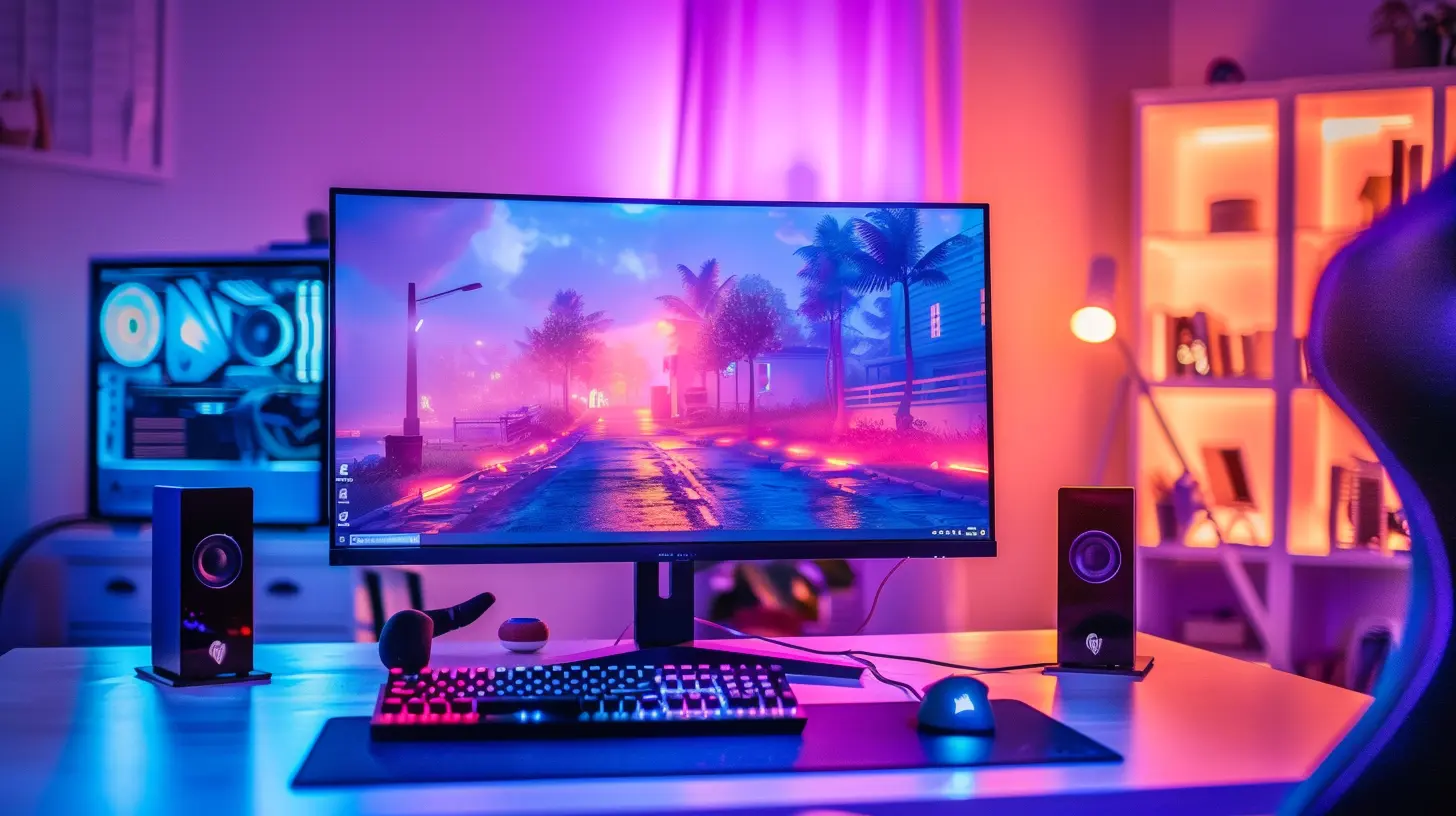
Why Go Dual Monitors for Gaming?
Before we dive into the nuts and bolts, let’s talk about why dual monitors are such a big deal in the gaming world.1. Multitask Like a Boss
Ever been in the middle of a game, trying to check a walkthrough on YouTube or reply to your squad on Discord? With one monitor, it's a hassle. With two? Easy peasy. Game on one screen, everything else on the second. Total control.2. Streamer’s Best Friend
If you’re thinking about getting into streaming (or already are), a second monitor is basically a must. Keep your recording software, chat, and subscriber alerts on one screen while playing on the other. It makes everything smoother and way more fun.3. More Productivity (Even Outside of Gaming)
Okay, so this one’s a bit off-topic, but let’s be honest—most of us use our rigs for more than just gaming. And a second monitor? Total life-saver when you're working, editing videos, or even just browsing.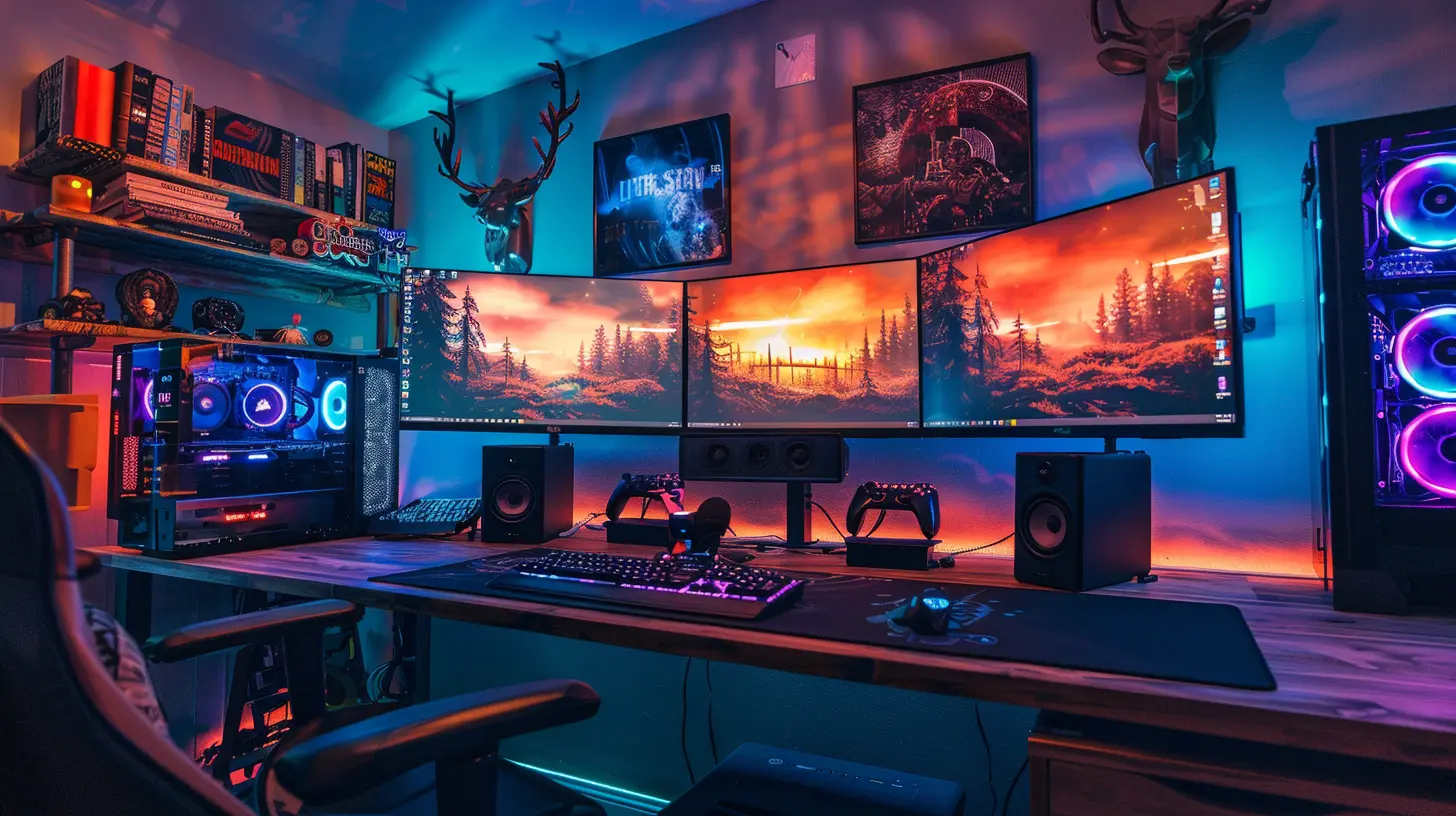
What You’ll Need for a Dual Monitor Setup
Ready to get started? Let’s do a quick checklist so you’ve got all the essentials for your dual monitor setup.⚙️ Hardware
- Two Monitors – Obviously. Ideally, they should be the same size/resolution, but they don’t have to be.- A Capable Graphics Card – Most modern GPUs support dual (or even triple) monitor setups. Make sure yours has at least two output ports (HDMI, DisplayPort, DVI).
- Cables – HDMI, DisplayPort, or DVI, depending on your monitor and GPU.
- Mount or Stand (Optional) – If desk space is tight, consider a dual monitor stand or arm.
? Software
- Windows 10/11 or macOS – Built-in multi-monitor support.- Graphics Card Software – NVIDIA Control Panel or AMD Radeon Software for more customization.
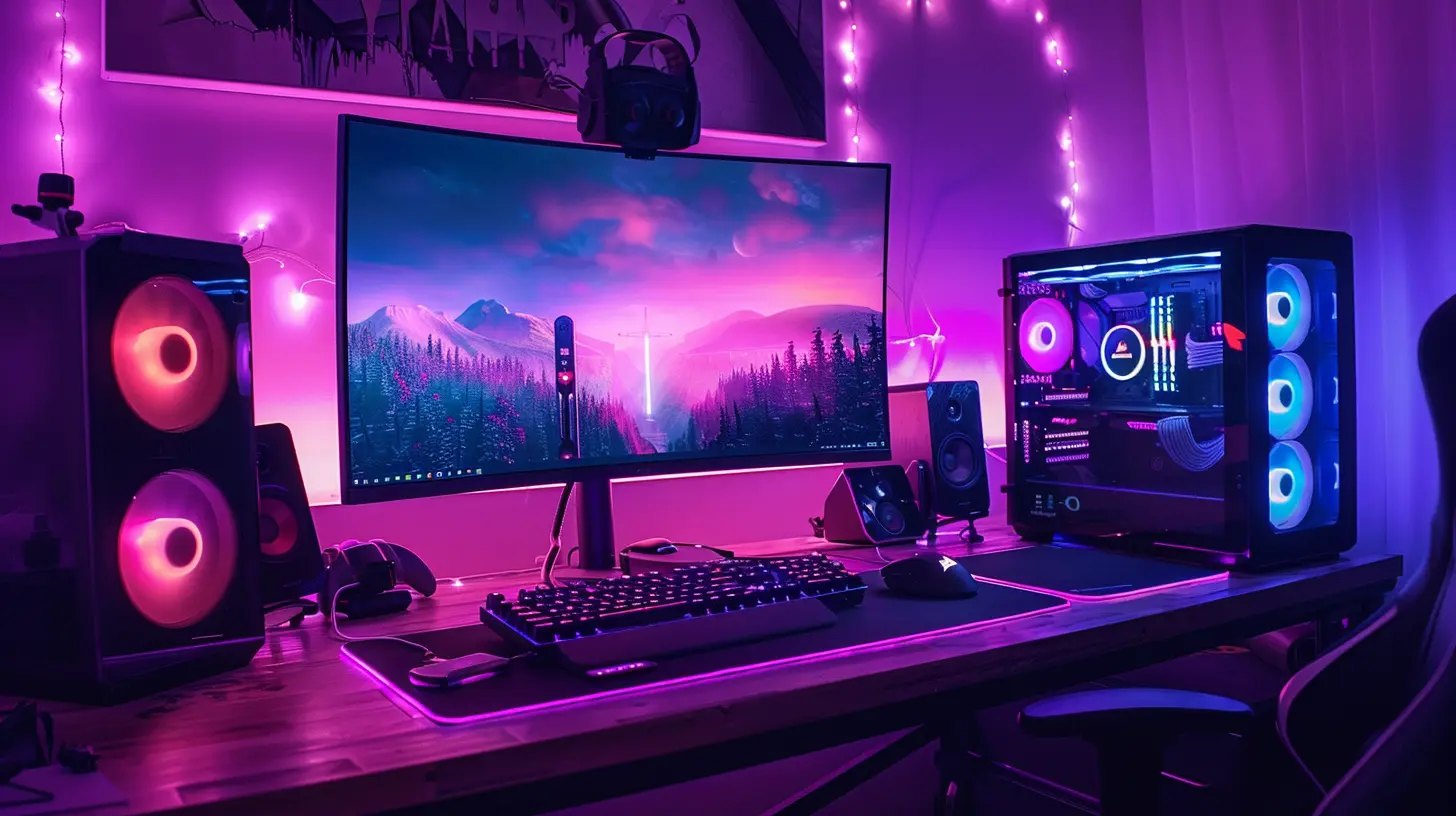
Step-by-Step: How to Set Up Dual Monitors for Gaming
Alright, let’s get our hands dirty (figuratively, of course). Follow these steps and you’ll be up and running in no time.1. Connect Both Monitors
Start by plugging the monitors into your GPU. Use HDMI, DisplayPort, or whatever works with your hardware. Most GPUs have multiple outputs, so just match the ports and plug them in.? Pro Tip: If one monitor is higher refresh rate (say 144Hz) and the other is lower (like 60Hz), plug the high-refresh monitor into the best port (usually DisplayPort).
2. Power Up and Boot Into Windows
Once connected, turn on your PC. Windows should automatically detect both displays. If it doesn’t, don’t panic—we’ll handle that next.3. Configure Display Settings
Right-click on your desktop and select “Display Settings.” Here’s where the magic happens:- Rearrange Displays – Drag the screens to match how they're physically placed on your desk. Trust me, this saves your wrist from weird mouse movements.
- Set Primary Display – Choose which monitor is your main (usually the one you game on).
- Resolution & Orientation – Make sure both are running at their optimal resolution and orientation.
4. Customize with Graphics Software
Depending on your GPU:- NVIDIA Users: Open NVIDIA Control Panel > Display > Set up multiple displays.
- AMD Users: Use Radeon Software to fine-tune display preferences.
These tools let you do things like color matching, scaling, and refresh rate adjustments.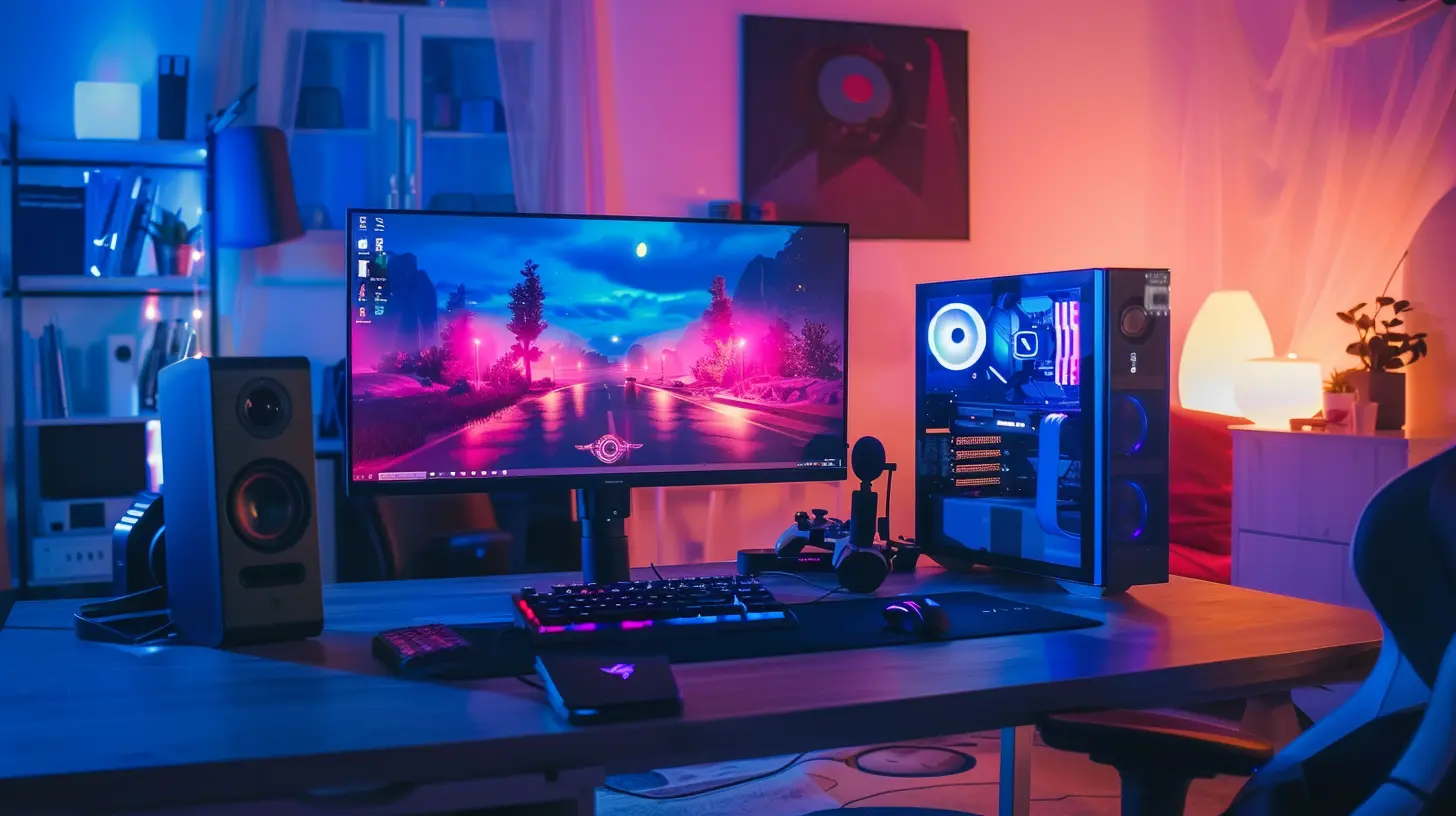
Tips for a Smooth Dual Monitor Gaming Experience
Everything’s plugged in and working. Awesome! But there are a few more tweaks you can make to really optimize your setup.Match Color and Brightness
If you’re using two different monitors, odds are they don’t look the same right out of the box. Take a few minutes to adjust brightness, contrast, and color settings so they blend better. Your eyes will thank you.Use Borderless Windowed Mode
Running your game in fullscreen? Consider switching to borderless windowed mode (if the game supports it). This makes switching between screens seamless—no tabbing required.Manage Audio Outputs
Want game audio on your headset and stream alerts on your speakers? You can assign different audio outputs under Windows sound settings. Super helpful if you're multitasking.Enable G-Sync/FreeSync (If Available)
If your monitors support G-Sync or FreeSync, make sure they’re enabled for smoother visuals, especially on your primary gaming monitor.How to Set Up Dual Monitors for Streaming
Thinking about becoming the next Twitch legend? Then dual monitors are practically essential. Here's how to set things up like a pro.Put Your Game on the Main Screen
Always run your actual game on your primary monitor. This is where the action happens, and it should have the best specs—higher refresh rate, better color, etc.Use the Second Monitor for OBS and Chat
Set up streaming tools like OBS Studio and keep them pinned on the second screen. You can track CPU usage, stream quality, and viewer interaction without missing a beat.Organize Your Workflow
Keep streaming assets (alerts, overlays, etc.) and your music app (hello, Spotify) on the second screen. The more organized you are, the smoother the stream.Dual Monitor Desk Setup Ideas
Let’s talk aesthetics. A good-looking setup isn’t just eye candy—it inspires you to spend more time perfecting your play.Side-by-Side (Landscape)
The classic layout. Easy to set up and practical for most desks. Try to keep bezels close and levels even.Stacked Monitors (One Above the Other)
Great if you're limited on horizontal space. Just be mindful of neck strain—don't spend too much time looking up.V-shaped Layout (Angled In)
Slightly angled toward you, forming a shallow “V.” This reduces head movement and gives a more immersive feel.Mounts and RGB for Extra Style
Consider a dual monitor arm for better ergonomics and desk space. And yes, throw in some RGB to make it pop!Troubleshooting Common Issues
Stuff happens. Don’t worry. Here’s how to fix the most common dual monitor headaches.One Monitor Isn’t Detected
- Check cable connections.- Try swapping ports on the GPU.
- Restart the PC.
- Update your graphics drivers.
Games Launch on the Wrong Monitor
- Set the desired screen as “Primary Display” in Windows.- If that doesn’t work, use borderless windowed mode and drag the game to the right screen.
Screen Tearing or Lag?
- Make sure refresh rates match (or are at least compatible).- Enable G-Sync or FreeSync if supported.
Final Thoughts: Is Dual Monitor Gaming Worth It?
Absolutely. Once you go dual, you honestly don’t wanna go back. The convenience, the improved gaming experience, the ability to multitask—all priceless. Sure, it takes a bit of setup at first. But think of it like tuning a race car. Once it’s dialed in, every ride (or in this case, game) is just that much sweeter.Whether you’re a casual gamer looking to enhance your experience or a hardcore streamer chasing those Twitch subs, a dual monitor setup is the upgrade you never knew you needed—until now.
So go ahead, get those screens synced up, your setup looking slick, and prepare for some seriously next-level gaming. You deserve it.
all images in this post were generated using AI tools
Category:
Gaming MonitorsAuthor:

Avril McDowney